

Overview
Congratulations on successfully integrating with Parchment Health APIs! This guide outlines the essential steps to transition from sandbox to production, ensuring a smooth deployment for your users.Timeline: The entire process from video submission to production launch typically takes 3-5 business days, depending on the complexity of your integration and review feedback.
Step 1: Integration Demonstration Video
Once you’re satisfied with your sandbox integration, you’ll need to create a comprehensive demonstration video showing the complete user journey.📹 Video Requirements
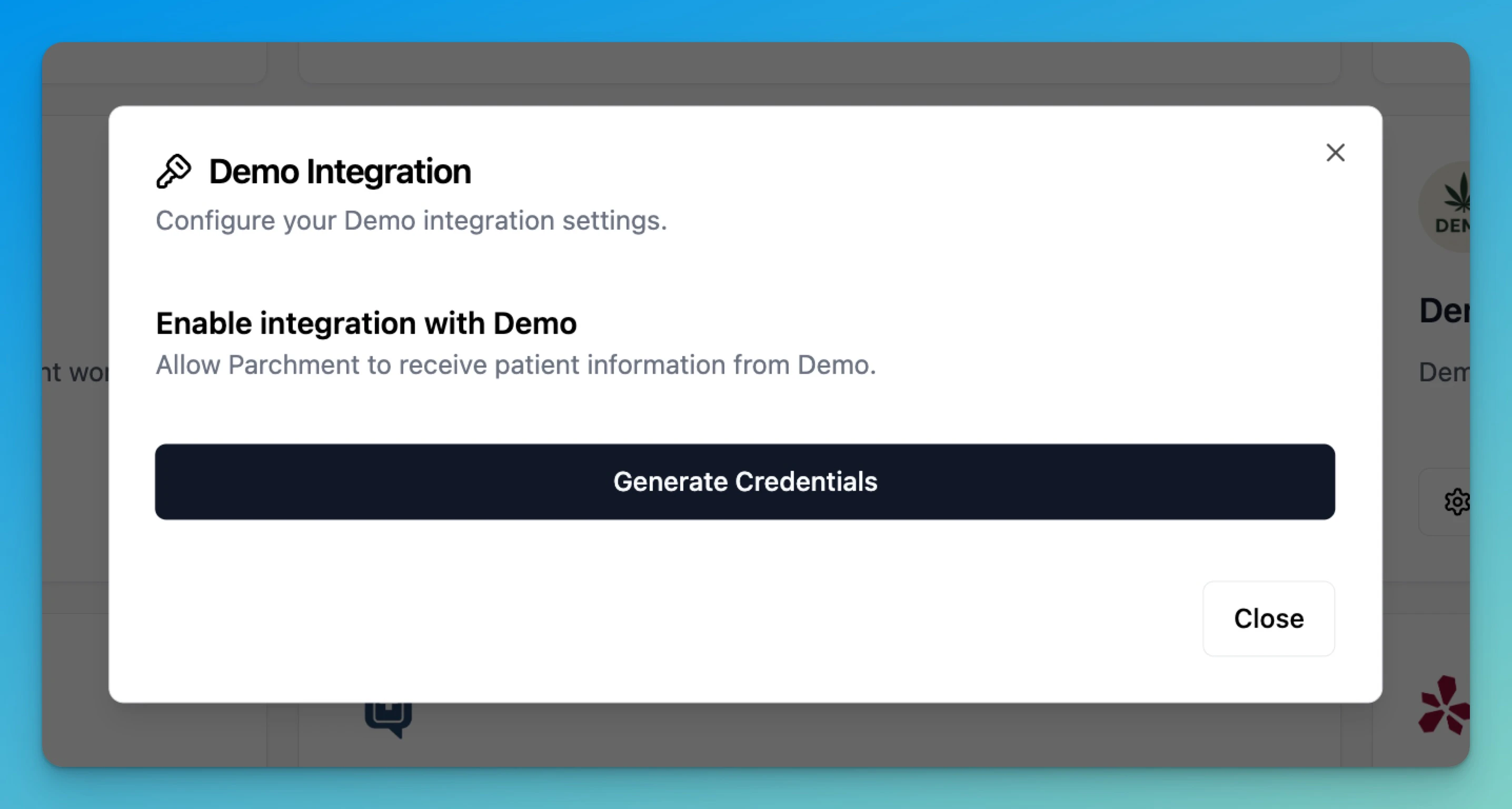
Your demonstration video must cover the following workflow in order:1.1 Credentials Setup
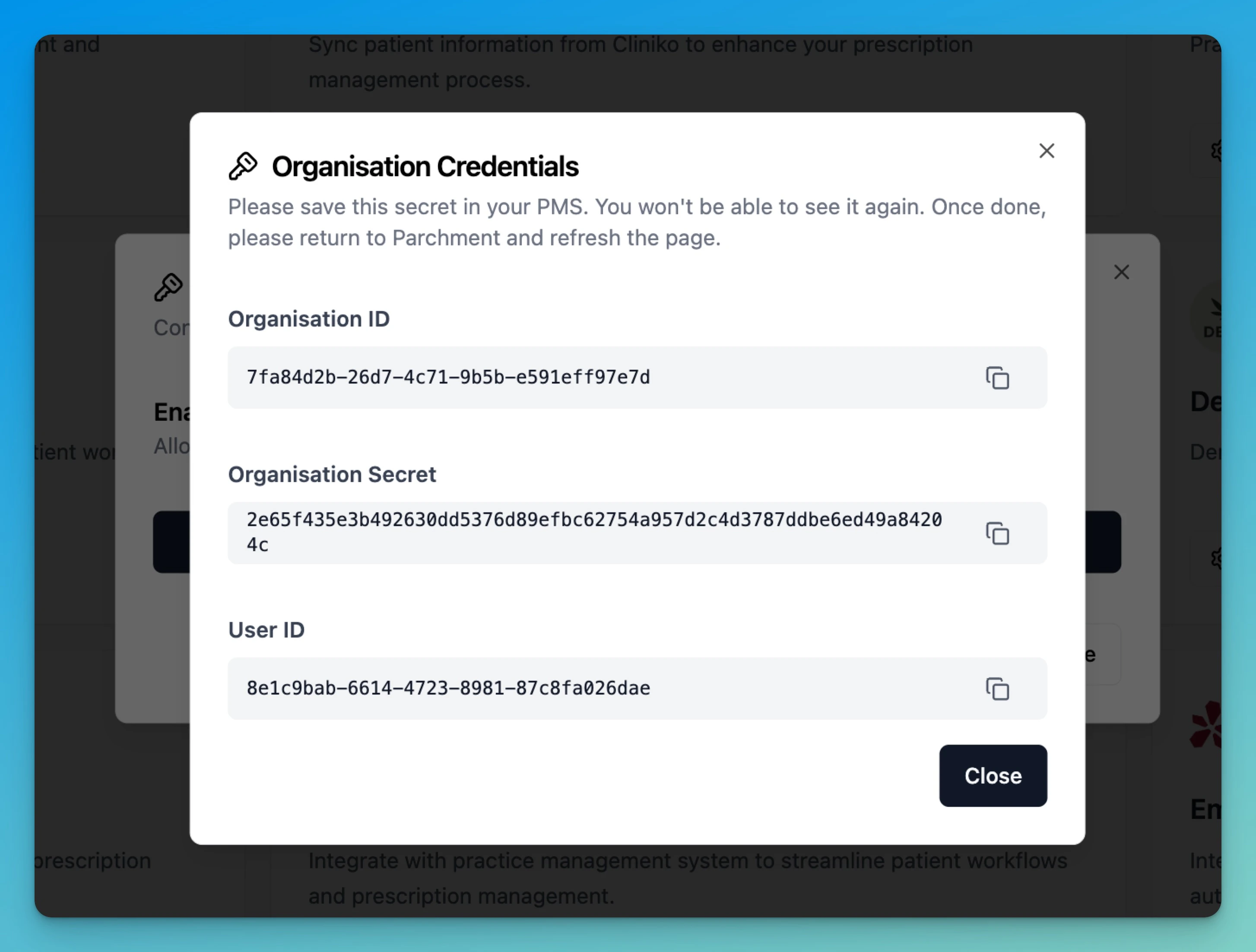
- Navigate to Settings > Organisation > Edit > Partner Integrations in your sandbox environment
- Copy the partner credentials (organisation_id, organisation_secret and user_id)
- Note: You don’t need to blur out the credentials as it’s a sandbox environment
1.2 PMS Integration Configuration
- Open your Practice Management System (PMS)
- Navigate to the Parchment integration settings
- Enter the sandbox credentials you copied
- Save the configuration
1.3 Integration Validation
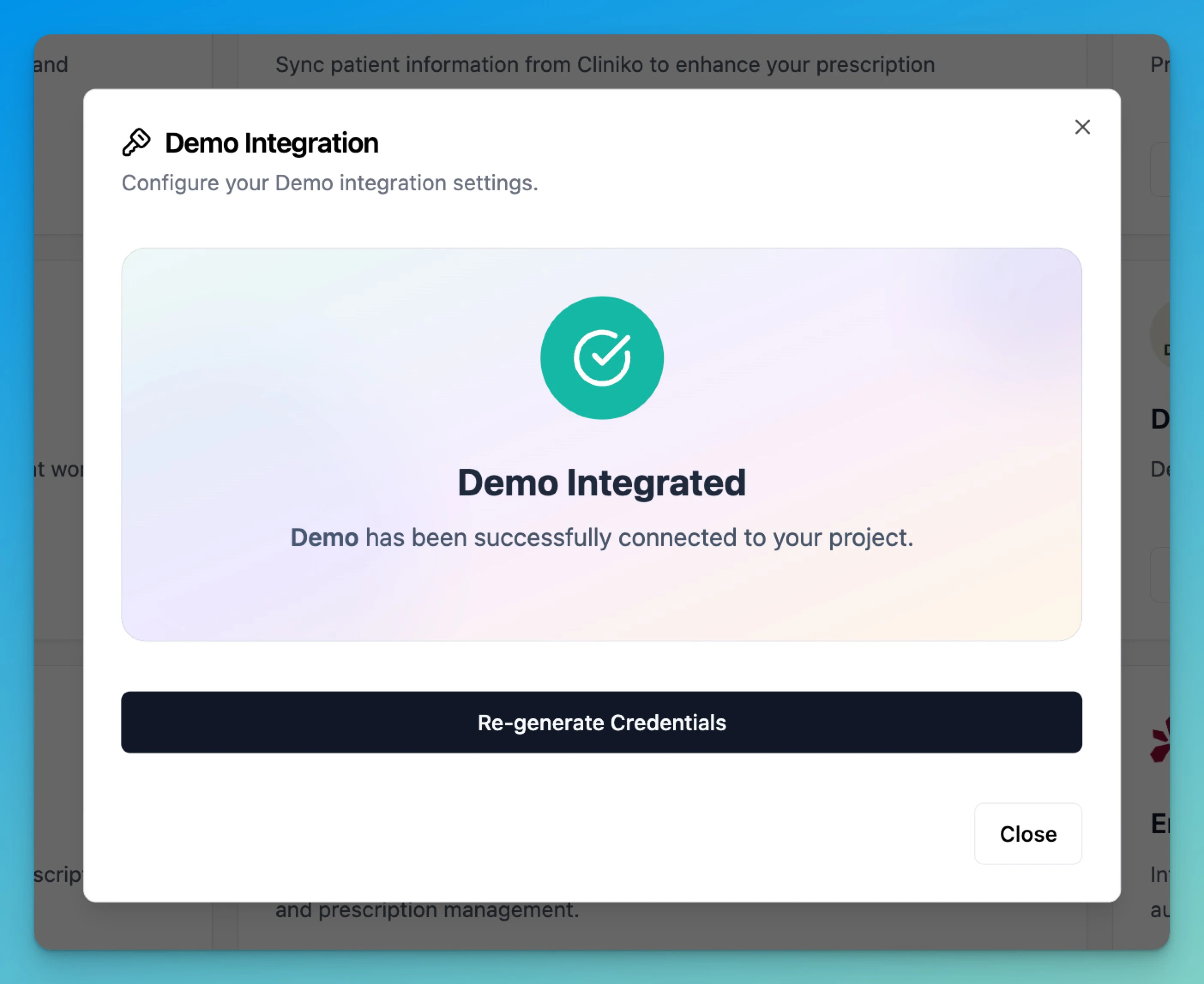
- Return to Parchment’s integration page
- Refresh the page if you need to
- Demonstrate: The integration was successful ✅ (this confirms the
/validateendpoint is working correctly) - Show any success messages or status indicators
1.4 Patient Workflow Demonstration
- Create a new patient in PMS (you need to use test data for the xls doc shared previously)
- Click the prescription button in PMS
- Demonstrate: The user is taken to the patient in Parchment
1.5 Prescription Management
- Create a prescription for the patient in Parchment
- Demonstrate: The prescription data is correctly displayed in PMS
📝 Video Best Practices
Step 2: Video Review Process
2.1 Submission
Submit your demo video through one of the following methods:- Preferred: Upload to a secure sharing platform (Google Drive, Dropbox, etc.) and share the link
- Alternative: Direct email attachment (if file size permits)
2.2 Review Timeline
1
Initial Review
1-2 business days - Technical review of integration functionality
2
Feedback Round
1 business day - Any issues or questions communicated back to you
3
Final Approval
1 business day - Approval for production credentials once all requirements are met
Step 3: Production Credentials & Security
3.1 Security Assessment
Before receiving production credentials, we need to understand your security practices:Required Information:
Credential Storage & Access
Credential Storage & Access
We need to know:
- How production API credentials will be stored (environment variables, secure vault, etc.)
- Which team members/roles will have access to these credentials
- Your authorized user’s security posture (MFA enabled etc)
- Whether credentials will be stored in version control (should be NO)
Infrastructure Security
Infrastructure Security
Please provide details on:
- Server security measures and access controls
- Network security (VPNs, firewalls, etc.)
- Data encryption practices (in transit and at rest)
Compliance & Monitoring
Compliance & Monitoring
Documentation needed for:
- HIPAA compliance measures (if applicable)
- Audit logging and monitoring systems
- Incident response procedures
3.2 Authorized Personnel
Provide the email address and role of the person who will:- Receive the production credentials securely
- Be responsible for credential management
- Serve as the primary technical contact for production issues
3.3 Secure Credential Delivery
Production credentials will be delivered via:- 1Password that will be sent to authorised user’s email and expires in 7 days, or
- Secure Email if you have a preferred solution we could use
Step 4: Production Launch
4.1 Integration Tile Activation
- Your integration tile will be made live in Parchment’s production environment
- You’ll receive email confirmation when the tile is active
4.2 User Onboarding Flow
Your users can now sign up and start using Parchment:1
User Registration
Users visit portal.parchment.health and create an account
2
Account Setup
Complete their organisation and practice details
3
Integration Setup
Navigate to Settings > Integrations and find your PMS tile
4
Credential Entry
Copy credentials into your PMS
5
Validation
Test the connection (tile should turn green)
6
Start Prescribing
Begin using Parchment for electronic prescriptions (once prescriber details have been validated)
Useful Resources
- Partner Integration Guide - Complete technical integration guide
- API Reference - Detailed API documentation
- FAQ - Common questions and troubleshooting